Adding external users to your Power BI Workspace
A question I often get is how companies can share Power BI reports with external users, and how they can participate in a workspace. In this story, I’ll show you!
The Problem
When I want to add an external user to my workspace, I get the following error:
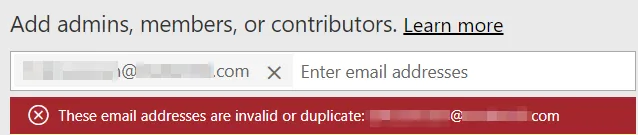
The email address is invalid.
I’m very sure that I haven’t added the user already, and I’m also sure that the email address is correct! The problem is that you can only let people from your tenant access the workspace! You can create guest user accounts in Azure Active Directory, but there is also a simpler, more automated way.
The Solution
First, the organization must know this user, and we can do that by sharing an individual report!

Share individual report
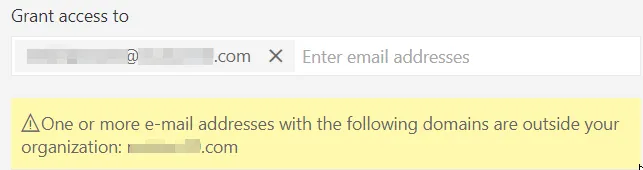
Warning, but possible
Individual reports can easily be shared with external users, and while you do that, a guest account is automatically created! The guest accounts can easily be recognized by the #EXT(..) suffix.
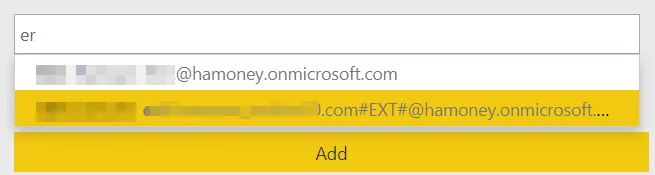
Guestemailaddress#EXT#@YourDomain.com
And now you can add the external user to your workspace. Make sure that you in the admin panel the following setting is enabled, otherwise the workspaces are still hidden:
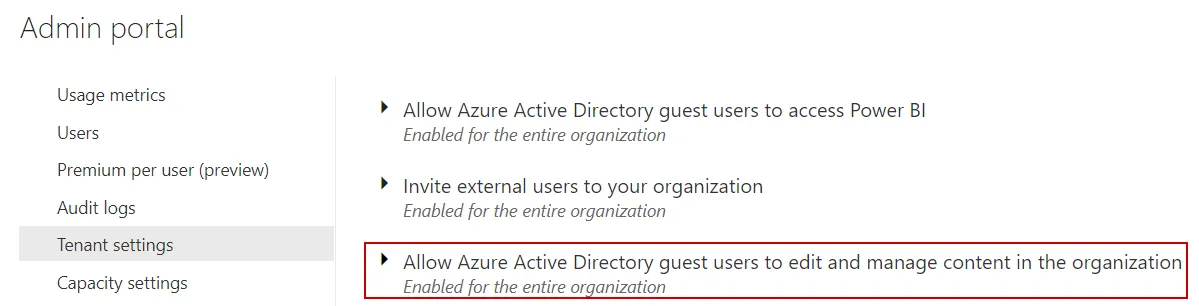
Allow guest users to edit and manage content
The guest user however can’t access the reports via his own tenant. He needs a link (while you share the report, the checkbox for send e-mail is automatically turned on) to access this workspace. The guest user also needs a Power BI license on YOUR tenant.
Azure Activity Directory
In the Azure portal, navigate to the Active Directory and select Users. Here you’ll find the guest users.
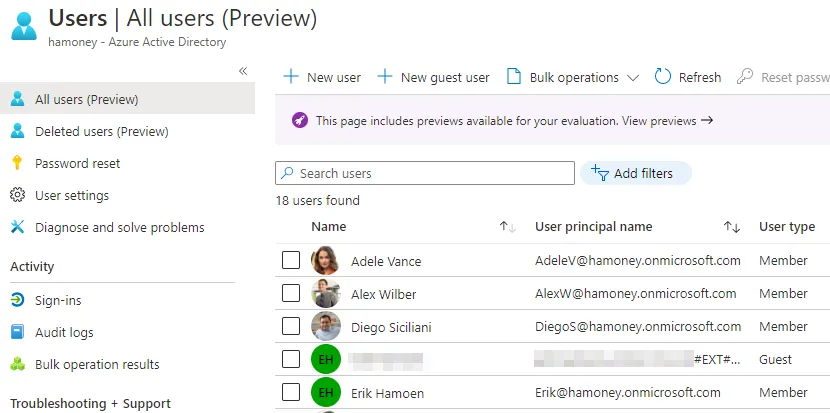
Find the guest user
After you select the guest, you have to edit the Usage location of the guest, otherwise, you can’t add a license. After that, check his licenses:
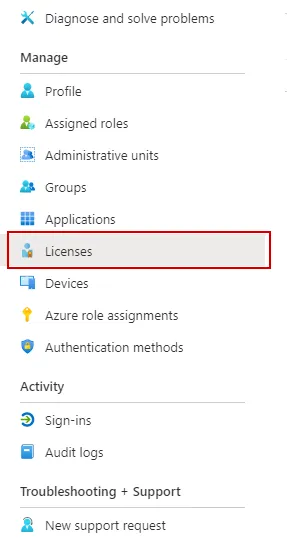
Select the licenses of the user.
Add a license to your user.
And Done!
I hope this article helps you with sharing content with external users! Unfortunality it isn’t possible for the external user to access your workspace via the “Shared with me” option.
Take care.